Sunday, April 21, 2013

Lab 10: Aerial Imagery Collected by a Helium Balloon

Introduction:

There are a variety of mediums available to gain access to aerial images that can then be used for analysis in the future. Using an airplane or a satellite are common ways, with each equipped with a high resolution capture device to take the desired images. Each of these techniques tends to produce great quality pictures that can then be used in a variety of applications. But they also are extremely expensive ways to collect the data. A cheaper alternative to getting aerial images is through the process of using a helium balloon equipped with a camera in continuous shot mode. An earlier post in this blog detailed the construction of the various rigs that would be needed in order to house the camera securely to the balloon, while still allowing for quality images to be taken. At this point in the semester, the weather was sufficient to take the balloon out and acquire images that can be then used for later analysis, since most satellite imagery of the University of Wisconsin Eau Claire does not cover the recent construction and renovation of campus. This post covers the testing, flight, collection of pictures, and the mosaicking of those pictures.

Methodology:

Getting the Balloon Ready for Launch:
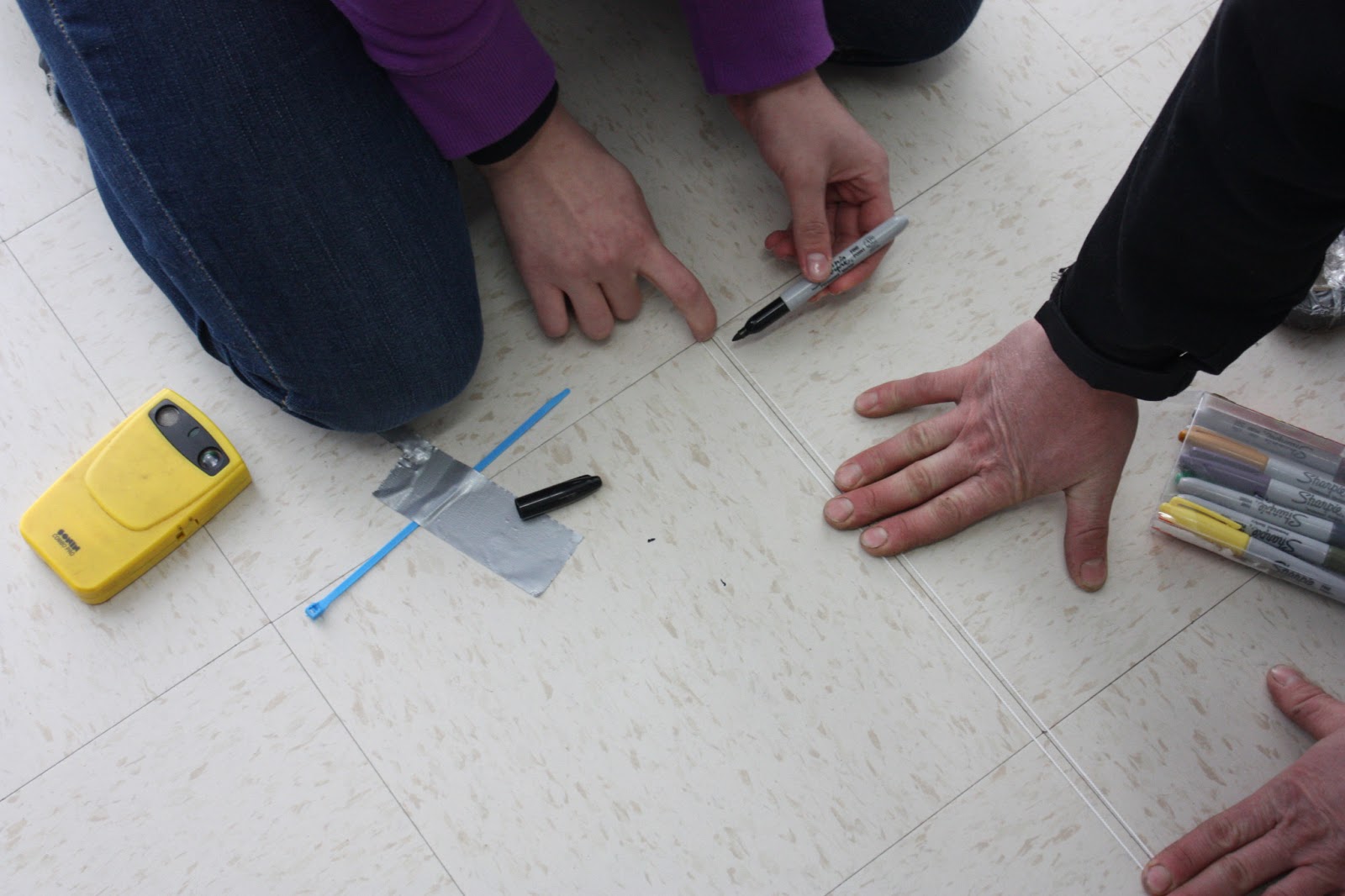
Figure 1: Measurement of rope to determine distance of balloon in the air
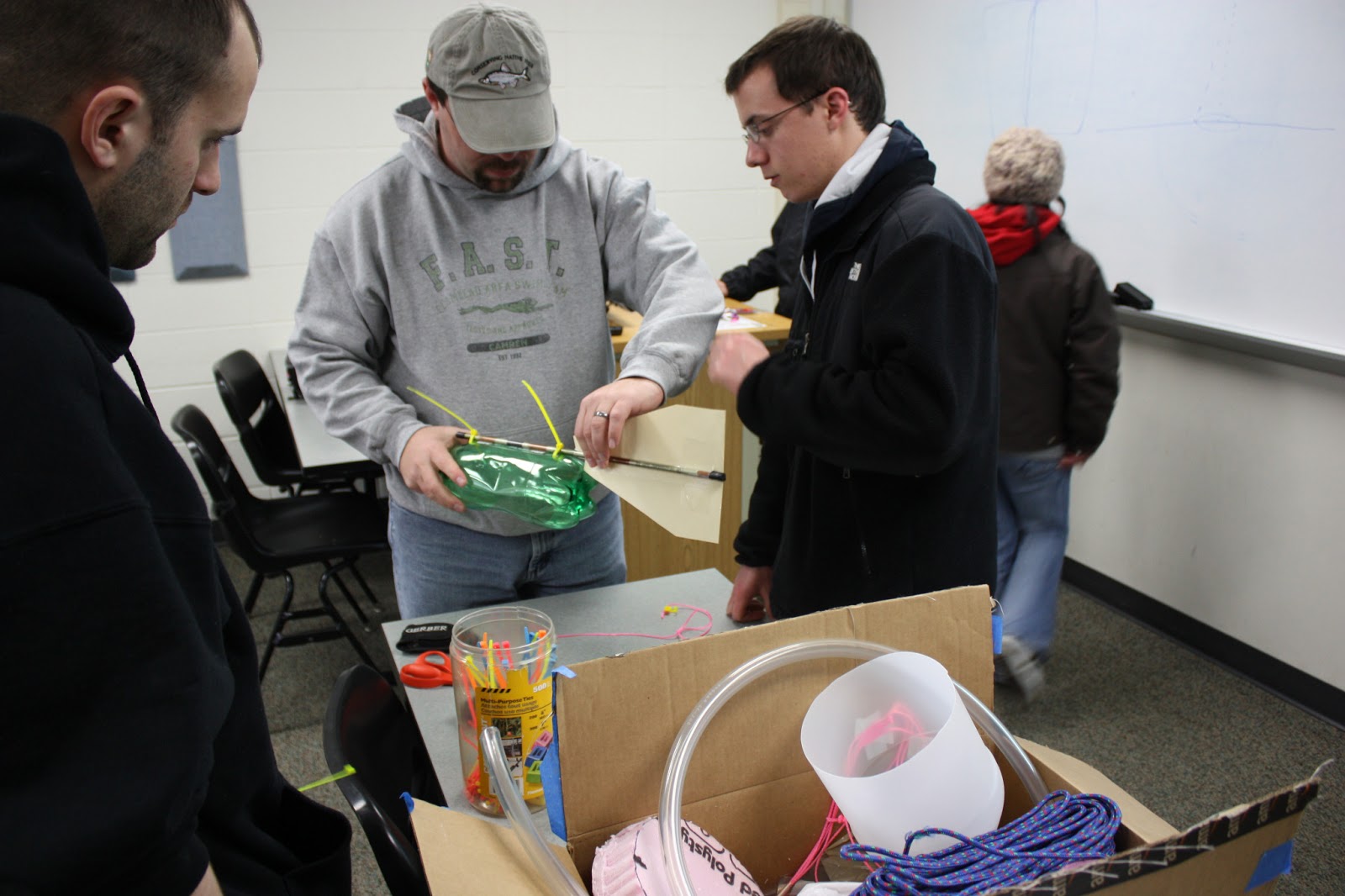
Deploying a helium balloon to take aerial photographs may seem like a fairly straightforward process, but it actually takes close to an hour of preparation. The first step involves the marking of rope segments at specific measurements to ensure that we had accurate height distances for each of the balloon flights. Figure 1 demonstrates how this was done. Segments of rope were measured at 100 meter increments, and then marked. Next, the mapping rigs needed to be examined to see how it would fly on the balloon. There was quite a bit of change from the first mapping rig, which can be seen in Figure 2, to the one that was used in the second mapping activity, shown in Figures 3 and 4. The first mapping rig did a sufficient job of protecting the camera, but was very susceptible to wind in the air, being fairly cumbersome and not very aerodynamic.
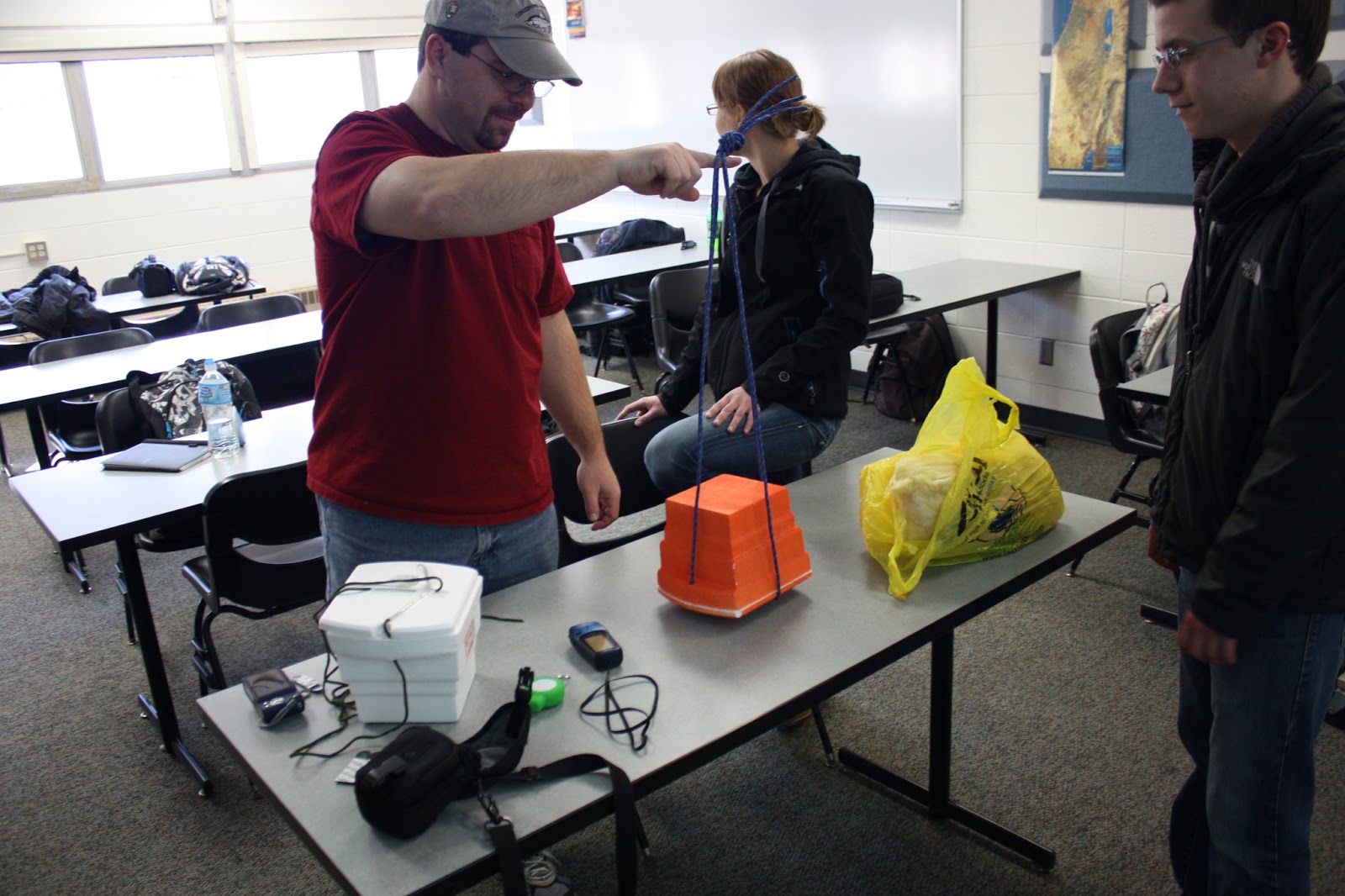
Figure 2: Examining the mapping rig that was used in the first mapping activity.
Figure 3: Mapping rig used in the second activity, with bottle attached
The design was reworked in the second mapping activity, taking this information into consideration. The rig initially had a two liter soda bottle that would house the camera, but this was determined to defeat the purpose of the arrow design. Instead, the bottle was removed from the design, and the camera was attached securely to the arrow itself, providing the best design to cut through the wind, which would keep the camera. and images that were taken, stationary.
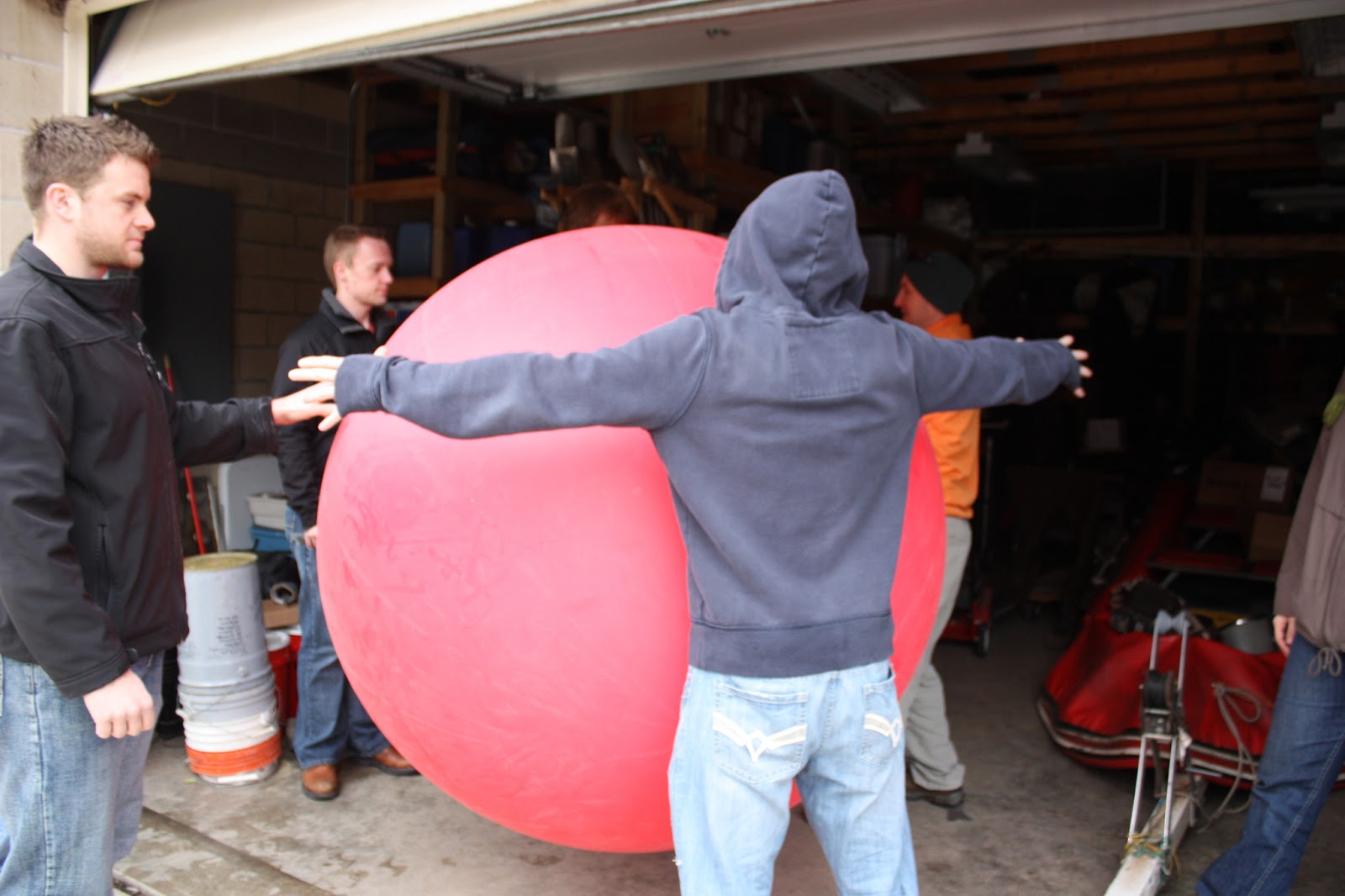
Filling up the balloon with helium was the next step. As the balloon, when fully inflated, was five and a half feet in diameter, this process took a long time to complete. Full inflation ensures that the balloon flies as high as possible, and that, in turn, guarantees the best possible pictures. Just how big the balloon got can be seen in Figure 5, with a student's wingspan being used a gauge to determine if the balloon was fully inflated at that point in time.
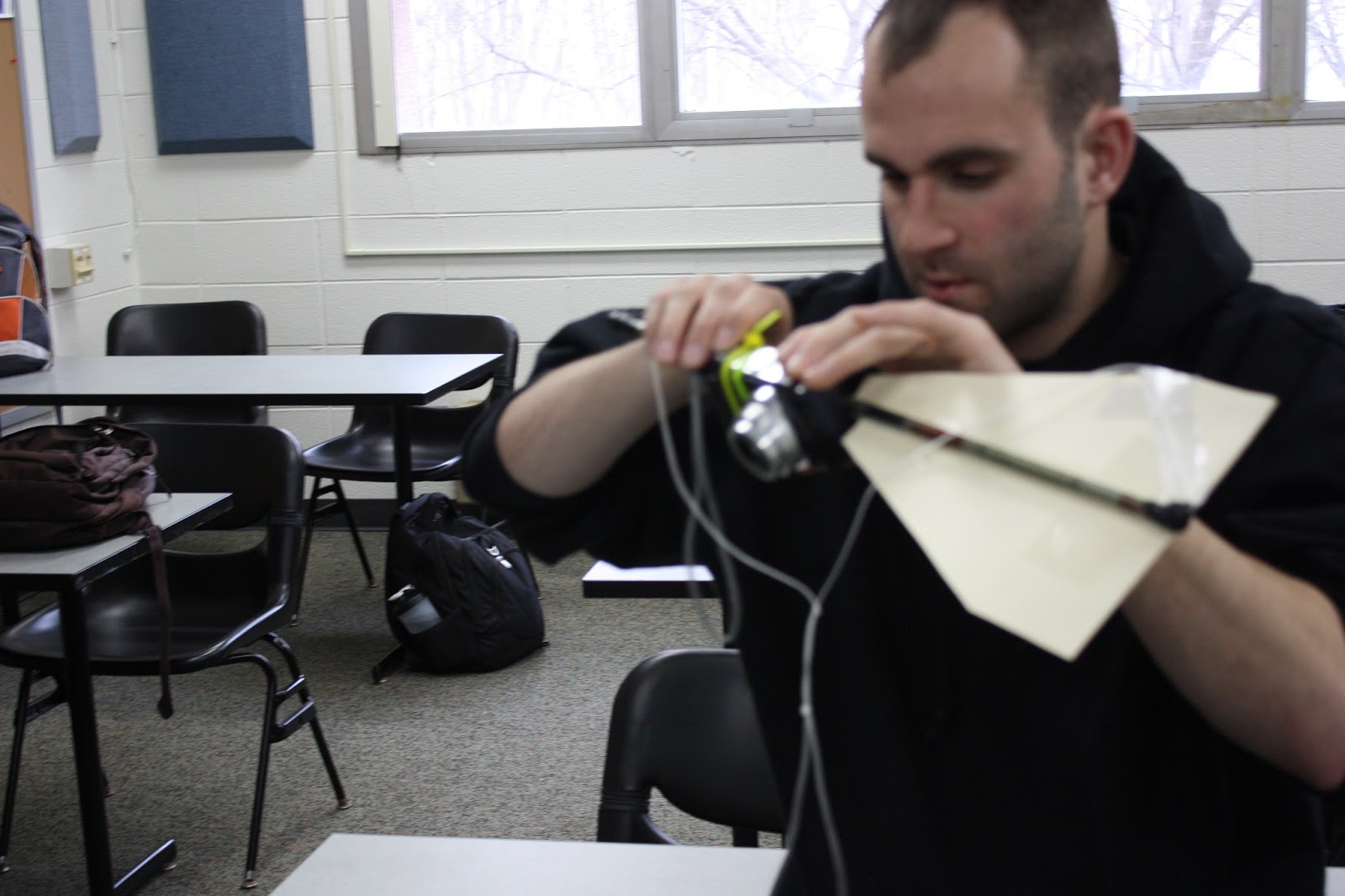
Figure 4: Mapping rig for second activity, with bottle removed


Figure 5: Checking to see if the balloon was fully inflated.


Flying the Balloon:

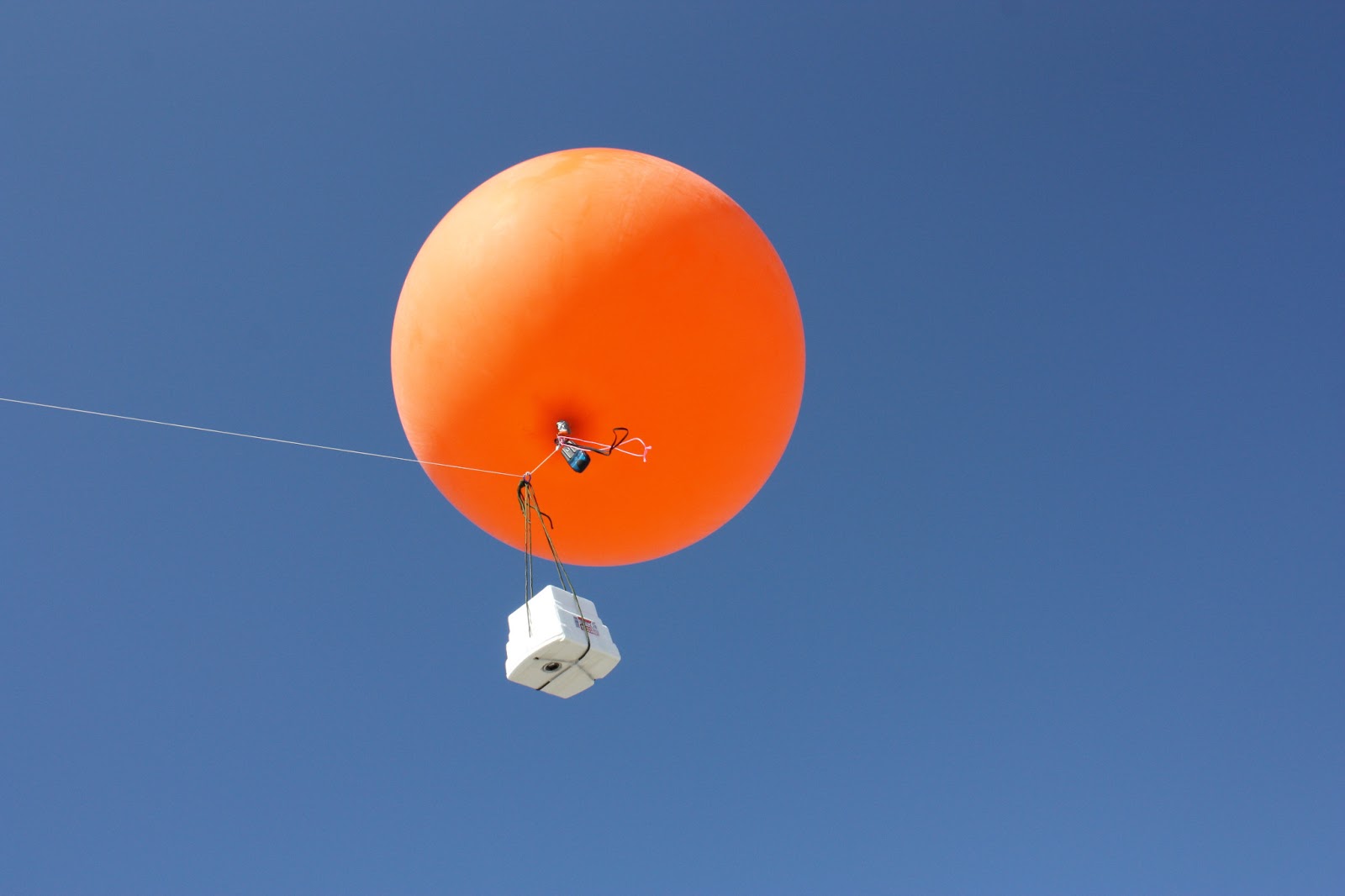
Figure 6: The first mapping rig, airborne and taking pictures
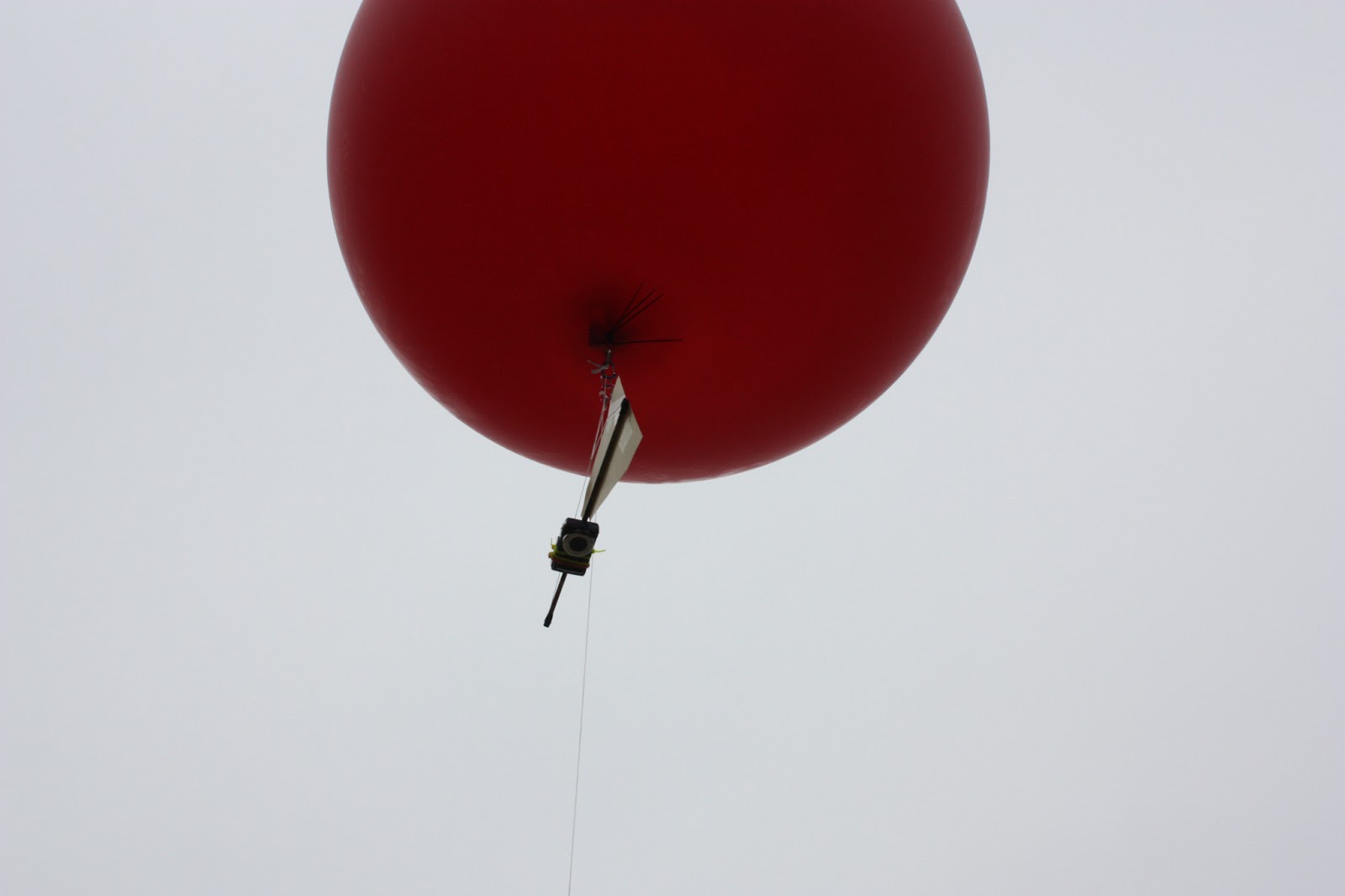
Figure 8: The second mapping rig, which was considerably more aerodynamic.
With our rigs constructed in Lab 3, and the weather cooperating, we were ready to obtain some aerial pictures with the helium balloon. The total airborne object would consist of the camera with a 32GB memory card, Styrofoam case, a Garmin E-Trex, a tracking device, and the balloon, all of which can be seen in Figure 6. The second mapping activity had significantly less equipment with the camera, only consisting of the mapping rig and camera, as seen in Figure 7. Once in the air, a walker on the ground would pull the string attached to the balloon with them as they walked around the UWEC campus. The continuous shot mode on the camera enabled many pictures to be taken in each outing. The first balloon trip resulted in 321 images, and the second trip managed to give us a staggering 4,846 images. The first round of pictures were taken around the main academic center of campus, while the second balloon trip covered a significantly greater area. In addition to the main academic area, the Davies Student Center, Haas Fine Arts building, and some sections of upper campus, where the residential halls are located, were mapped.

Georeferencing:
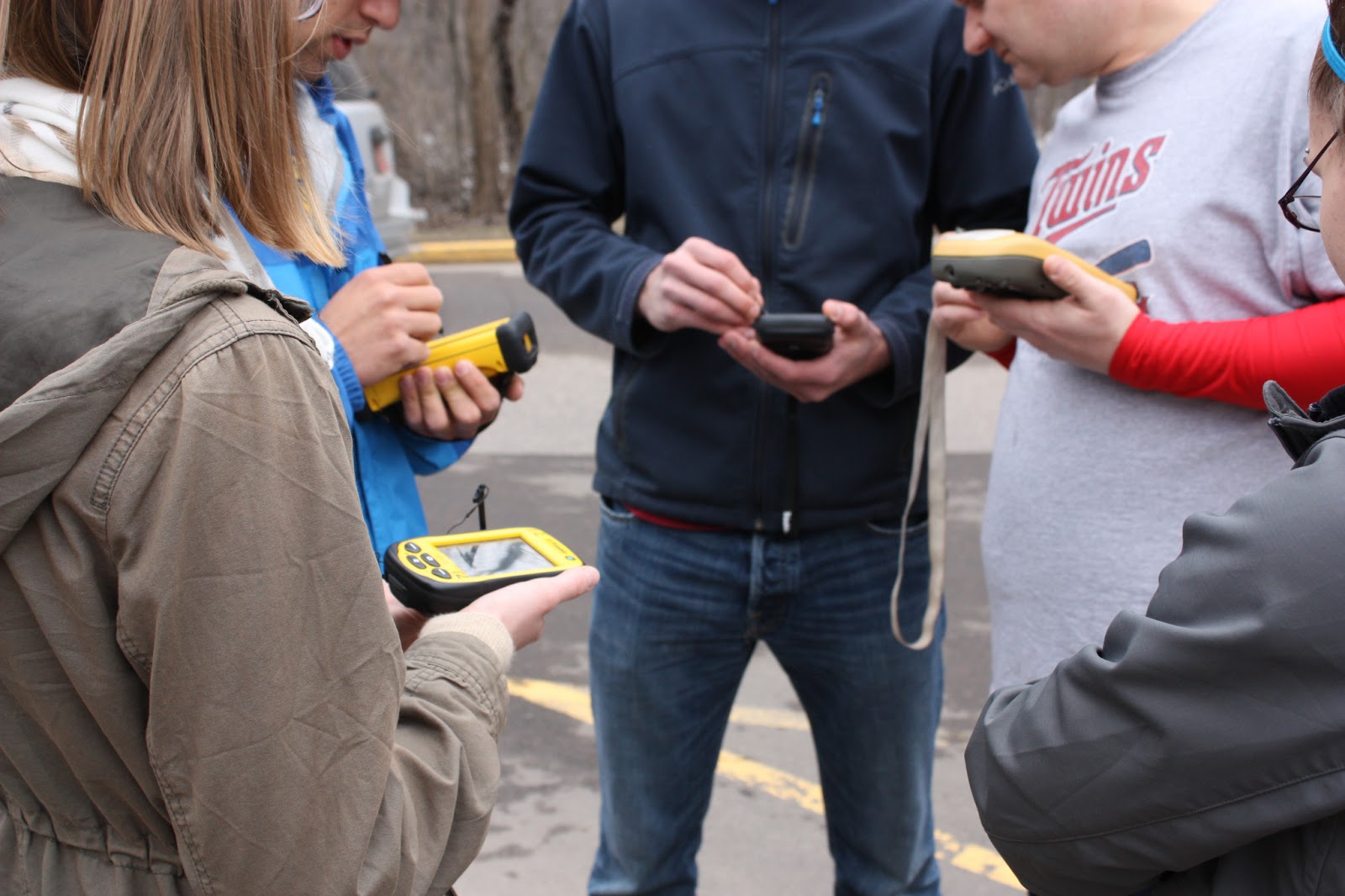
Figure 8: GPS crew collecting ground control points for georeferencing process
After collecting the images, they were uploaded for the next step of mosaicking. A number of software options were available to us for complete this task. MapKnitter, a website that provides a freeware mosaicking program, ArcGIS 10.1, and ERDAS Imagine, provided the needed functions that we needed. In the first activity, MapKnitter was used to produce a mosaicked image, and ArcGIS was used in the second. The first task that needed to be done in any of the programs was to georeference the pictures. Georeferencing is a process involving relating the picture to a physical area in space. To do this, an aerial image of campus was used as a basemap, and the pictures from the balloon were laid over the image, paying attention to scale of the picture. In MapKnitter, this was done by resizing, rotating, and stretching the images to produce a fluid grouping of pictures that looked like one image, instead of over ten. ArcGIS required setting ground control points, or GCPs for each picture on the basemap. Placing good GCPs is a challenge itself, especially considering the current aerial images for the UWEC campus does not show the addition of the new student center, and all of the construction that is currently taking place. So good GCPs were obtained by using things like corners of existing buildings, lightpoles, lines painted on the streets, and, when nothing else was available, gaps in sidewalks. In the second mapping activity, a group of four was walking around the main areas of campus with Trimble Juno GPS units, seen in Figure 8. Their goal was to establish mapping points that we could use in the georeferencing process. Getting these points would speed up the process, as it would be simple to reference these points in multiple photos, ensuring the highest degree of accuracy. Images were selected based on the amount of overlap, which allows the operator to produce a better looking image that is more consistent, rather than simply selecting single images that show the area of interest, and then moving to another area that did not have any of the features from the first image in it. This also ensures that buildings, lightpoles, and streets are in the same perspective, generally speaking. In order for a visually appealing image, the parallax of each building should look like one is directly over a feature, instead of on the side of it, which would result in a warped view.
  

Discussion:
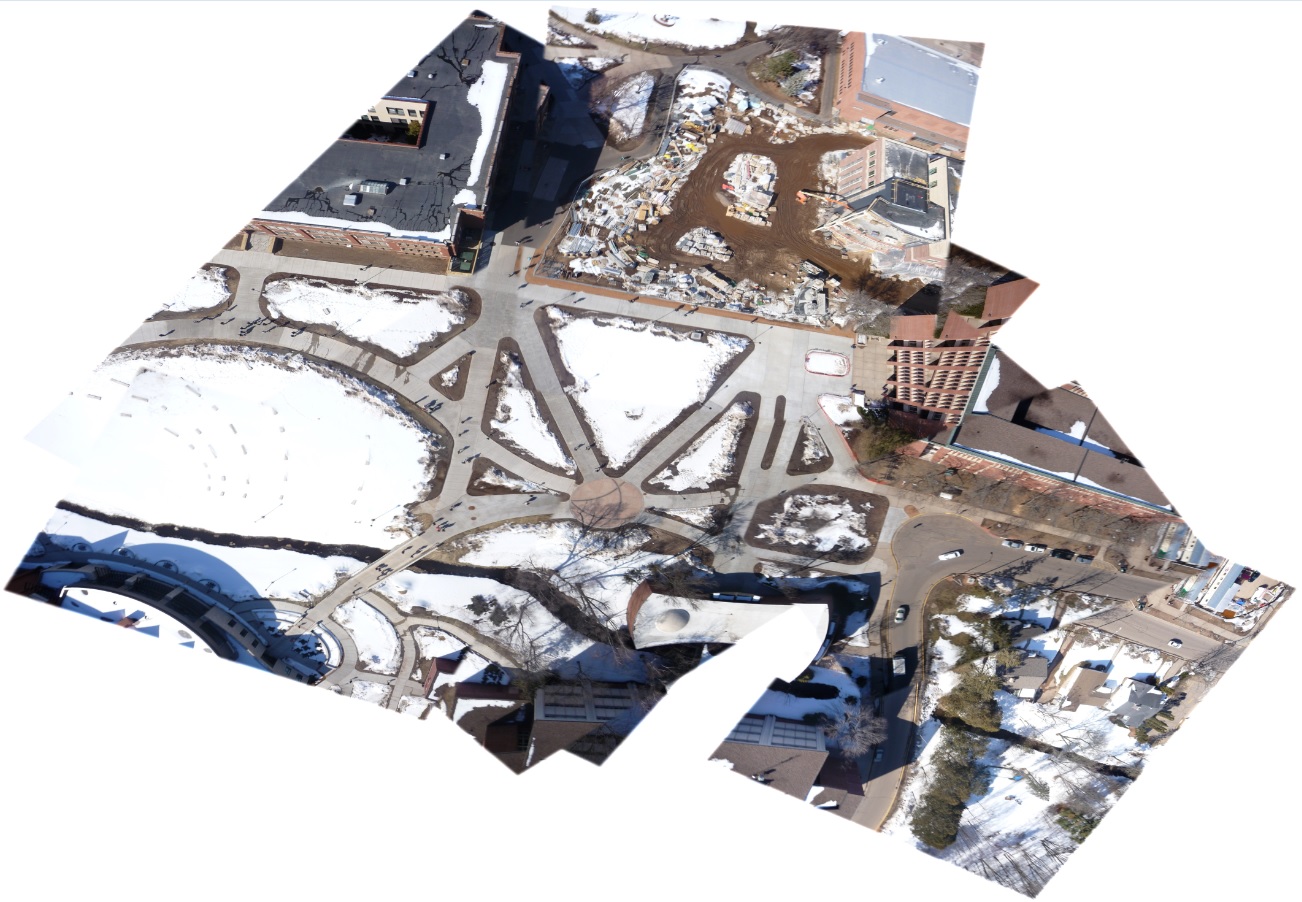
Figure 9: Mosaicked image of the campus mall, produced with MapKnitter software
When mosaicking the pictures and experimenting with the software that was available for us, each had its benefits and drawbacks. MapKnitter, for example, was extremely user friendly, using simple functions like rotate, resize, distort, and different transparency levels to place each picture in the correct spot at the correct resolution. This made it simple to place the sidewalks in the correct location, as it was only a matter of making one image transparent, and then lining it up with the image that was already laid behind it. Figure 9 shows the finished mosiac of the images from the first mapping exercise, using MapKnitter. The ease of use for this software was also its biggest drawback, however. Toned down for simplicity's sake, MapKnitter lacked the more advanced functions of mosaicking programs, notably the inability to place GCPs. Additionally, the limited number of pictures taken in this first round, and the relatively small area covered, did not allow for a complete scan, which can be clearly demonstrated by the distortion of Schneider Hall, the building on the far right in Figure 9. If more passes with the balloon were taken near that particular area, more overlapping pictures could have been taken, which woudl have resulted in a better quality image.
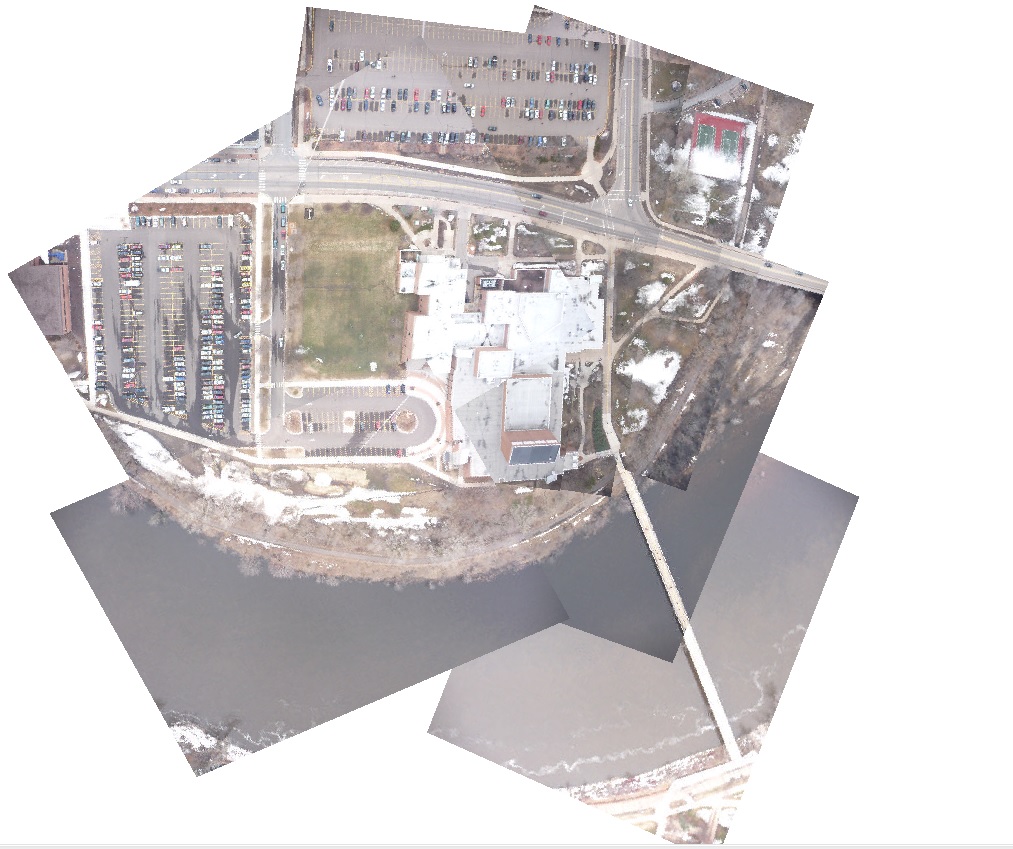
Figure 10: Mosaicked image of our group's area using ArcGIS Desktop 10.1 to georference and mosaic
Mosaicking in ArcGIS was a different process altogether. The placement of GCPs was critical to having a correct georeferenced image. To ensure this, at least 20 GCPs were used per image, to eliminate the possibility that the image would shift due to the placement of a point in an isolated section of the image. Having these GCPs, in addition to a significantly larger area covered and pictures taken, did make for a better finished image, which you can see in Figure 10. Despite the number of pictures taken, the mosaicked images appears more or less seamless, the goal of the project. The only real problem with this mosaic is the lack of coverage on the south side of Haas Fine Arts center, the large building in the middle of the picture. This is due to us pulling in the balloon, to check if the camera was still taking pictures. After checking that everything was still functional, we did not deploy the balloon again until we crossed the footbridge back to the main area of campus. Had we had the balloon up in the air during that walk, a better group of images would have been taken on the south side of Haas, and would have resulted in a more complete picture.
With the ultimate goal being the production of a single aerial image of the entire campus and surrounding area, the class was divided into six groups to each produce a mosaicked image of a particular area of campus. Once this was done, each of the images would then be mosaicked together to produce a single image of campus, which can be seen below in Figure 11. While being by no means the quality image of something like Google Earth, for the most part, the final image is a highly accurate and detailed picture of the University of Wisconsin Eau Claire campus. 
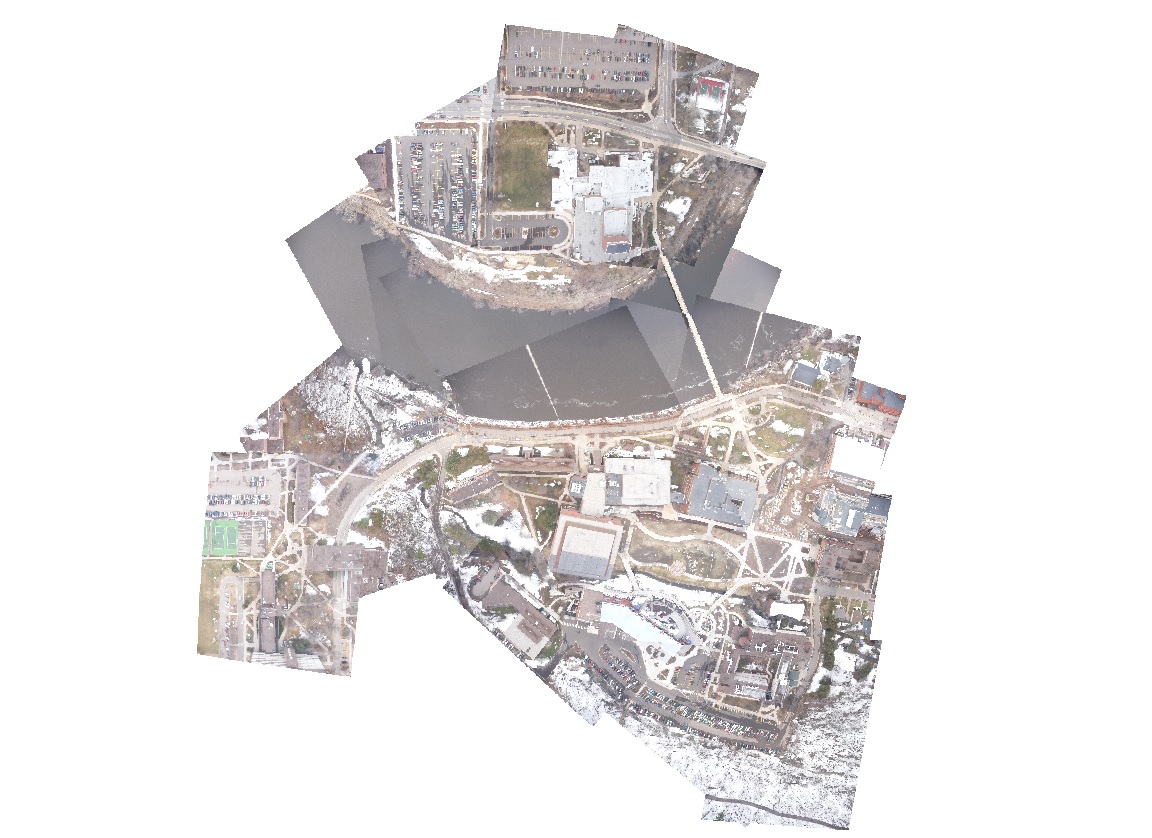
Figure 11: Final mosaicked image of all six group's areas using ArcGIS Desktop 10.1 to georeference and mosaic

Conclusion:

This activity was an incredibly valuable experience.  To the best of my knowledge, not too many people have done balloon mapping, especially in the scale that we had.  The second balloon outing especially confirmed this to me, with close to 5,000 images being taken. This large amount of pictures ensured that issues like inadequate coverage, which was present in the first balloon activity, would never happen. The large number of pictures did create quite a daunting task, however, as going through them to find the image with the right amount of overlap, the desired features being clearly displayed, and ones with the rope from the balloon in the correct area to be covered up by another picture, was a time consuming process. After using both MapKnitter and ArcGIS to mosaic, it is clear that, despite its user friendly nature, MapKnitter was the worst of the two programs. The act of georeferencing and the placement of GCPs is critical to a good image, and ArcGIS is the software to use to do this effectively. Since there has not been much prior documentation on the process, we were left to our own devices as to how to conduct the process. This was a learning experience for the entire class, since nobody had ever mosaicked pictures taken from a device that they had control of. But by being involved in the entirety of the process, we gained a real appreciation of what was needed to get a quality image of the UWEC campus. There were issues that occurred while mosaicking, such as dealing with software issues like the mosaic not finishing, or the order of the pictures being incorrect. But this forced us to understand the entire georeferencing and mosaicking process, and by the end of the activity, we went from being relatively inexperienced to being proficient at it. Knowing how to georeference correctly is an important skill set for any person conducting GIS analysis, and this activity gave us a trial by fire to ensure that we knew exactly what we were doing, leaving us with knowledge that we can use in countless applications. 

Sunday, April 14, 2013

Lab 9: Mosaicking Aerial Images Collected by a Helium Balloon

Introduction:

There are a variety of mediums available to gain access to aerial images. Using an airplane or a satellite are common ways, with each equipped with a high resolution camera to capture the desired images. Each of these techniques tends to produce great quality pictures that can then be used in a variety of applications. But they also are extremely expensive ways to collect the data. A cheaper alternative to getting aerial images is through the process of balloon mapping. An earlier post in this blog detailed the construction of the various rigs that would be needed in order to house the camera securely to the balloon. This post covers the testing, flight, collection of pictures, and the mosaicking of those pictures.


Methodology:

Figure 1: The mapping rig, airborne and taking pictures
With our rigs constructed in Lab 3, and the weather cooperating, we were ready to obtain some aerial pictures with the helium balloon. The total airborne object would consist of the camera with a 32GB memory card, Styrofoam case, a Garmin E-Trex, a tracking device, and the balloon, all of which can be seen in Figure 1. Once in the air, a walker on the ground would pull the string attached to the balloon with them as they walked around the UWEC campus. The continuous shot mode on the camera enabled many pictures to be taken in each outing. The first balloon trip resulted in 321 images, and the second trip managed to give us a staggering 4,846 images. The first round of pictures were taken around the main academic center of campus, while the second balloon trip covered a significantly greater area. In addition to the main academic area, the Davies Student Center, Haas Fine Arts building, and some sections of upper campus, where the residential halls are located, were mapped.
After collecting the images, they were uploaded for the next step of mosaicking. A number of software options were available to us for complete this task. MapKnitter, a website that provides a freeware mosaicking program, ArcGIS 10.1, and ERDAS Imagine, provided the needed functions that we needed. In the first activity, MapKnitter was used to produce a mosaicked image, and ArcGIS was used in the second. The first task that needed to be done in any of the programs was to georeference the pictures. Georeferencing is a process involving relating the picture to a physical area in space. To do this, an aerial image of campus was used as a base map, and the pictures from the balloon were laid over the image, paying attention to scale of the picture. In MapKnitter, this was done by resizing, rotating, and stretching the images to produce a fluid grouping of pictures that looked like one image, instead of over ten. ArcGIS required setting ground control points, or GCPs for each picture on the base map. Placing good GCPs is a challenge itself, especially considering the current aerial images for the UWEC campus does not show the addition of the new student center, and all of the construction that is currently taking place. So good GCPs were obtained by using things like corners of existing buildings, light poles, lines painted on the streets, and, when nothing else was available, gaps in sidewalks. Images were selected based on the amount of overlap, which allows the operator to produce a better looking image that is more consistent, rather than simply selecting single images that show the area of interest, and then moving to another area that did not have any of the features from the first image in it. This also ensures that buildings, lightpoles, and streets are in the same perspective, generally speaking. In order for a visually appealing image, the parallax of each building should look like one is directly over a feature, instead of on the side of it, which would result in a warped view.
Unfortunately for this assignment, the lack of communication was an issue. The assignment was to use the images collected through the mapping rig to create a seamless image of the entire UWEC campus that had coverage. As this was an extremely time consuming task, campus was split into six sections. This seemed like a good idea at the time, but there was minimal communication between the groups, and this resulted in hardly any of the mosaicked TIFF files being uploaded into the geodatabase so that a total mosaic could be built.    

Discussion:

Figure 2: Mosaicked image of the campus mall, produced with MapKnitter software
When mosaicking the pictures and experimenting with the software that was available for us, each had its benefits and drawbacks. MapKnitter, for example, was extremely user friendly, using simple functions like rotate, re-size, distort, and different transparency levels to place each picture in the correct spot at the correct resolution. This made it simple to place the sidewalks in the correct location, as it was only a matter of making one image transparent, and then lining it up with the image that was already laid behind it. Figure 2 shows the finished mosiac of the images from the first mapping exercise, using MapKnitter. The ease of use for this software was also its biggest drawback, however. Toned down for simplicity's sake, MapKnitter lacked the more advanced functions of mosaicking programs, notably the inability to place GCPs. Additionally, the limited number of pictures taken in this first round, and the relatively small area covered, did not allow for a complete scan, which can be clearly demonstrated by the distortion of Schneider Hall, the building on the far right in Figure 2. If more passes with the balloon were taken near that particular area, more overlapping pictures could have been taken, which would have resulted in a better quality image.
Figure 3: Mosaicked image of our group's area using ArcGIS Desktop 10.1 to georeference and mosaic
Mosaicking in ArcGIS was a different process altogether. The placement of GCPs was critical to having a correct georeferenced image. To ensure this, at least 20 GCPs were used per image, to eliminate the possibility that the image would shift due to the placement of a point in an isolated section of the image. Having these GCPs, in addition to a significantly larger area covered and pictures taken, did make for a better finished image, which you can see in Figure 3. Despite the number of pictures taken, the mosaicked images appears more or less seamless, the goal of the project. The only real problem with this mosaic is the lack of coverage on the south side of Haas Fine Arts center, the large building in the middle of the picture. This is due to us pulling in the balloon, to check if the camera was still taking pictures. After checking that everything was still functional, we did not deploy the balloon again until we crossed the footbridge back to the main area of campus. Had we had the balloon up in the air during that walk, a better group of images would have been taken on the south side of Haas, and would have resulted in a more complete picture.

Conclusion:

This activity was an incredibly valuable experience. To the best of my knowledge, not too many people have done balloon mapping, especially in the scale that we had. The second balloon outing especially confirmed this to me, with close to 5,000 images being taken. This large amount of pictures ensured that issues like inadequate coverage, which was present in the first balloon activity, would never happen. The large number of pictures did create quite a daunting task, however, as going through them to find the image with the right amount of overlap, the desired features being clearly displayed, and ones with the rope from the balloon in the correct area to be covered up by another picture, was a time consuming process. After using both MapKnitter and ArcGIS to mosaic, it is clear that, despite its user friendly nature, MapKnitter was the worst of the two programs. The act of georeferencing and the placement of GCPs is critical to a good image, and ArcGIS is the software to use to do this effectively.


Sunday, April 7, 2013

Lab 8: Culmination of Field Navigation Exercises

Introduction:

The past three entries in this blog have covered topics involving field navigation techniques. Using an aid to orient oneself with an area that is unfamiliar is a key component of being a geographer, and the principal application for a map. A good map leaves the viewer more spatially educated with the content being displayed. The importance of accurate navigation was applied more practically with these previous lab exercises, with a new skill being learned in each one. The first, the creation of a field navigation map, demonstrated the importance of accuracy in cartography skill, as the map, in combination with the compass, was the only aid in navigating the environment surround the Priory, a piece of real estate purchased by the University of Wisconsin Eau Claire. The second activity involved using the map and compass to effectively navigate around land surrounding the Priory, visiting certain navigation points along the way. The third activity transitioned to more technology-intensive field navigation techniques, and employed the use of a Garmin E-Trex GPS unit to navigate to certain coordinates where the navigation points were located. Each activity educated us in the various ways to accurately position oneself in their environment to get where they needed to go. The final activity served as a culmination of each of these sets of skills. For this week, we were to visit all of the navigation points, instead of only following a specified route like the previous activities. Eliminating the start points of each loop left each group to find 15 points, using a field map and E-Trex for assistance. To make the activity more interesting, we were equipped with Tippmann A-5 paintball markers, shown in Figure 1, and told to engage other groups if we encountered them. This added another variable to the activity, with what was previously a leisurely walk in the woods to a fast-paced, competitive scenario that required our navigation skills, as well as testing us physically.
Figure 1: A Tippmann A-5 paintball marker, used in this activity


Methodology:

The first process that needed to be done for this activity was to create another field navigation map, similar to the one that was created in the first activity. Once again, we were given a good deal of creative freedom with what to include in our maps. Similar to the first navigation exercise with the map and compass, a UTM grid was essential for navigation, as the coordinates could be used in conjunction with the navigation points that were provided in the previous lab activity to use the Garmin E-Trex to drop a way point at the desired navigation point, and then use the GPS to navigate there. A number of images of the City of Eau Claire could be selected as a base layer of the map, to get a reference point before starting to navigate the terrain. Like in the first exercise, an aerial image of Eau Claire West, the Southeast quadrant, served as the base layer, which was obtained through the WROC_Specs PDF file in a data folder that we were provided with prior to map design. One piece of data that was not included in the first field navigation map creation activity was a No Shoot Area, which we were required to put in the map. Due to the Priory's primary function as a daycare center for young children, we needed to have a wide buffer between where the kids could be, and where we, and our paintball markers, were. The resulting map that was used in the field activity, which clearly demonstrates the No Shoot Zones, can be seen in Figure 2 below.
Figure 2: Field Navigation map used in the paintball activity, with the No Shoot Zones and the navigation point boundary clearly marked for reference
Figure 3: Latitude, longitude, and UTM coordinates of navigation points for the lab activity
Once arriving at the Priory, each person was given an E-Trex, and a Tippmann A-5. The GPS unit was used primarily to provide a record of the tracklog, so that we could examine our routes after completing the activity. Another function that the GPS provided was the ability to drop way points on our current location, serving as proof of each group arriving at a particular navigation point. Figure 3 shows the UTM coordinates of the fifteen points that we had to navigate. Our group did not utilize these coordinates, however, choosing to rely on our paper map and experience in the wilderness for the two previous activity, to navigate the Priory. Like the previous navigation activity, after completing the navigation, we were required to take the GPS unit and download the tracklog and way point data. Again, we used DNRGPS, an open source piece of software that was built to transfer data between Garmin handheld GPS receivers and GIS software, like ESRI ArcMap, the software package that we used for this activity. After being downloaded, the tracklog and way points were imported into a geodatabase as point feature classes, and then brought into ArcMap to be manipulated further to create the maps found below.
Navigation was significantly more taxing this time due to the presence of the other groups that could open fire on us at potentially any time. The map of our tracklog, shown in Figure 4, demonstrates this perfectly. The route that we took was not organized well, with no real strategy employed from getting from point to point.  The video below the map, made by using the time field on the GPS tracklog data, is a time-based animation, showing the order of points collected.
Figure 4: Field map with imagery of the Priory, no-shoot zones, navigation points, and way points dropped on the routes to get to each navigation point.


Discussion:

Conducting this activity as the capstone of our navigation activities that have been occurring the past few weeks was a great idea. Adding that element of surprise provided by the use of paintball guns was a great challenge to keep us on our toes and change up the dynamic of the class. However, with all of the excitement and potential for engagement of other teams, collecting all of the navigation points proved difficult. Our group, Group 2, managed to collected the most points, but we were one short of getting all fifteen, and I believe that can be attributed to the excitement that led up to a massive firefight that we were involved in. Figures 5-9 below show maps of the other five groups' routes to get from navigation point to point. As we were looking for point 5A, our group saw two other groups that had joined forces and were coming right for us. After engaging them, we forgot to look for the point we were so close to. That is something that would not have happened while simply navigating on foot, without the potential of having to shoot at other teams. Additionally, in the excitement of a firefight, sometimes the GPS unit accidentally dropped a way point, which caused confusion when trying to gauge how many more navigation points our group needed to collect. This also was a contributing factor in failing to collect all of the points, as we believed that we had all of them for at least half of the duration of the activity.
Figure 5: Field map showing the movement of Group 1 in their route to visit all of the navigation points. They managed to arrive and drop way points 11 of the 15 possible navigation points.
Figure 6: Field map showing the movement of Group 3 in their route to visit all of the navigation points. They managed to arrive and drop way points 13 of the 15 possible navigation points.
Figure 7: Field map showing the movement of Group 4 in their route to visit all of the navigation points. They also managed to arrive and drop way points 13 of the 15 possible navigation points.

Figure 8: Field map showing the movement of Group 5 in their route to visit all of the navigation points. They appear to have only managed to arrive and drop way points 8 of the 15 possible navigation points, despite the tracklog record saying that they came close to two points, without dropping a waypoint
Figure 9: Field map showing the movement of Group 6 in their route to visit all of the navigation points. They managed to arrive and drop way points 10 of the 15 possible navigation points.
An issue that did manifest itself in the activity, and the resulting data manipulation was that of GPS accuracy, which was addressed in the previous post. As visible on the map in Figure 4, the way points that were recorded are off slightly from the coordinates of the navigation points, when they should, in theory, be right on top of one another. This is due to a phenomenon called Positional Dilution of Precision, or PDOP, and is an issue that plagues most GPS units, especially smaller ones like the Garmin E-Trex. If there are not enough satellites being able to be received by the GPS, the accuracy of the points can be incorrect. So even though all of the way points were taken right next to the navigation points markers, the heavy tree cover in the area disrupted the clear transmission of the signal to the GPS, resulting in a position disparity between the way points, and the coordinates of the navigation points.
The benefit to using both a GPS unit and a field navigation map in conjunction with one another was clear. Instead of relying on the field map and compass alone, like in the previous activity, and having to walk a straight line in even-paced steps to successfully find the navigation point, the map was used as a supplement to the GPS unit, which was the most effective way to navigate that we have utilized. In the previous blog post, I went into the positives and negatives to relying solely on one of the methods, and ultimately arrived at the conclusion that using both a GPS unit and an accurate field map would ultimately produce a navigation route that would present the least amount of obstacles to the navigator. The paper map would not run out of batteries, and would not have PDOP issues, while the GPS unit would not require the user to plot out bearing directions and walk in perfectly straight lines to reach the desired destination. The two, when used together, made this the most effective navigation exercise, despite the fact that there was the possibility of other groups engaging us with their paintball markers on the way to drop way points at the navigation points.

Conclusion:

The navigation activities at the Priory, and this exercise which required us to use all of our newly acquired knowledge were fantastic learning opportunities. Being able to apply what we have learned in an environment where it is required is one of the best ways to truly understand something, because your ultimate success or failure is based entirely on your mastery of the content. It is up to you if you get all the points, or if you get lost, confused, or do a poor job preparing for the outing. While a lot of individual work was required for this project, ultimately it was team exercise that demanded effective communication in order to be successful. Having each person keep a lookout for other teams and the navigation markers was absolutely essential to completing the activity in a timely fashion. Additionally, if a group member was able to traverse the snow faster than others, they could get the navigation point, while others who would be better reading the map could tell them where to go. Every group member's strengths could be highlighted during this activity, and effective utilization of these skills was a key factor, I believe, in our group's ability to get the most amount of navigation points collected.

Sunday, March 24, 2013

Lab 7: Field Navigation Using a GPS Unit


Introduction:

In the previous field navigation exercise, a simple field map and compass was used to successfully find particular locations at the Priory in Eau Claire, WI. While effective in identifying the hidden points, there were some issues that made navigation somewhat difficult. Chief among them was the process of step counting, and maintaining a perfectly straight bearing. The terrain and weather conditions were the main reason for these problems. Our step count values were obtained by walking in a straight line, on concrete that was cleared of any obstructions, making the journey very easy. When actually conducting the field navigation exercise, our path was anything but clear. There was at least a foot of snow on the ground, making step counts extremely inaccurate. Additionally, maintaining a perfectly straight bearing was complicated by the abundance of trees and shrubbery that covered the wooded area surrounding the Priory. Technology has allowed for some of these inconveniences to be remedied, and a contributing factor to that is the advent of portable GPS units. For this field navigation exercise, instead of using a map and compass, a Garmin E-Trex, shown in Figure 1, was used to navigate from point to point.
Figure 1: A Garmin E-Trex, the GPS unit used in this exercise
http://www.newsroute.info/TechReviews/GarminEtrexLegend.html

Methodology

Once arriving at the Priory, each person was given an E-Trex and a set of UTM coordinates. The GPS unit had to be calibrated to read your position in UTM, and once this was done, navigation could occur. To do this, the UTM coordinates provided to all the groups on the chart needed to match the coordinates on the GPS unit itself. Northing and easting directions were given, and to get where you needed to. If the northing needed to be decreased from your current position to get to the navigation point, you would walk south. If it needed to be increased, you would walk north. The same goes for the easting position. If it needed to be decreased, you would walk west. If it needed to be increased, you would walk east. By using these values, the group was able to efficiently navigate from point to point successfully. As with the previous navigation exercise, each point had a tool that you could punch you card, recording your successful finding of that respective area.
After completing navigation, the tracklog of the E-Trex had to be downloaded onto a computer to then import the data into ArcMap for manipulation. A program called DNR GPS, a piece of open source GPS software, was used to transfer the data off of the unit and onto a computer, where it was later saved as a point shapefile. The shapefile was then imported into a geodatabase, where it could become a feature class, and was finally then able to be brought into ArcMap for manipulation. All of the tracklogs from the class were uploaded to a feature dataset, so that all of the data could be accessed by everybody in the class. Figure 2 shows a map of my tracklog, and its relation to the navigation points that we had to follow. The video below the map shows a time-lapse progression of the navigation from point to point. Be sure to watch the video in full-screen to accurately see everything that is represented on it. Our group had to follow the 1A-6A points, which are marked on the map and video, and illustrated in Figure 3.
Figure 2: Individual tracklog for my GPS unit.

Figure 3: Copy of table containing UTM values used to navigate to the points.

The next map that was produced was one of all of the members in my group and their routes, shown in Figure 4. While this may seem redundant, as all group members should have the same tracklog records, this is not the case. When trying to find the navigation point, often times we would split up and look in different directions if we thought we were close. This cannot be shown on individual maps, but the group map can demonstrate this.
Figure 4: Map of my group's tracklogs in relation to the navigation points we were following.
Finally, the last map created was a collection of all groups that participated in the exercise, and the routes that they took to get from point to point, illustrated in Figure 5. As you can see, the courses took groups across the entire wooded area surrounding the Priory. Additionally, the paths cross in certain places, adding one more challenge to navigation, as each group had to be absolutely certain of their position, or risk steering toward a navigation point that was not theirs to find.
Figure 5: Tracklog records for the entire class, relative to the navigation points they were trying to find

Discussion
Figure 6 : Snowfall map of the state of WI on March 11, 2013.
Retrived from NOAA

As convenient as using the GPS unit to navigate through the various courses at the Priory, the process was not without issue. The first was something that could not be controlled: the weather. On the date of the field exercise, March 11, 2013, the Eau Claire area was hit with a fairly substantial amount of snow. Figure 6 shows a precipitation map of the state of Wisconsin on that day, with Eau Claire County getting almost eight inches of snow.  This made getting to the Priory difficult if proper precautions and planning were not done. Unfortunately, the group that I received a ride to the location did not take this into account, with a vehicle of a classmate being unable to drive in the snow. Thinking quickly, we used my car to get a number of people to the site. Unfortunately, at this time, we were already late for the activity, and the groups had left without us. After being given our GPS units, those who had been late were instructed to find their groups. For me, this was easier said than done. I attempted to find my group, but with no luck. The GPS unit was unfamiliar to me, and while I had an idea how to use it, trying to find the point where my group left was personally difficult for me. At one point, I managed to find another group, and I joined up and completed the exercise with them. I realize that this was not following the directions, and am disappointed in my perceived confidence with the E-Trex, which led me to having to abandon my group and join another one, just to avoid getting lost in the woods trying to find the navigation points on my own, while trying to look for my group members.
Another issue that was encountered was the accuracy of the GPS unit. Because of the heavy tree cover, sometimes getting a reading was difficult, because the E-Trex would pause while looking for a strong enough signal to give accurate coordinates. This was not an issue with the field map and compass navigation exercise, as the only thing that would prohibit our understanding of the map was our eyes. If we produced an accurate map, and had plotted direction and bearing values accurately, proper navigation was almost guaranteed. By using GPS units to navigate, we were at the whim of technology. If the tree cover was too thick, the E-Trex would not have a signal, and would render navigation impossible. Also, the GPS unit relied on batteries, which die after extended use. If the GPS unit ran out of power, it became just a rectangle in your hand that you can do nothing with. These pros and cons of using both a map and compass, and a GPS unit, need to be balanced with each other, and, using this balance and understanding of the limitations of each method, an appropriate tool can be selected to tailor the kind of navigation that is required.

Conclusion:

This field navigation activity demonstrated the benefits and drawbacks of using GPS units in attempting to successfully navigate a terrain. The technology that the Garmin E-Trex can offer in assisting the user in locate their position and move them from place to place is a significant improvement in using a map and compass to do a similar task. However, as technology often fails, the GPS units are susceptible to mechanical issues, like any other piece of equipment. Batteries can die, rendering the GPS itself useless. Tree cover can block a signal, affecting the accuracy of the plotted position. And operator error in reading the coordinates and understanding the unit can also prevent successful navigation. But even after considering all of these possible avenues for error, the GPS units do make the job of tracking and orienting oneself much easier than using a map and compass. While maps and compasses do not run out of batteries, or have their signal blocked from high levels of tree cover, they cannot tell you how far off course you are, or orient you in the right direction if a wrong turn is taken. At the end of the day, each method has its own benefits and drawbacks, and it is up to the person conducting field research to choose the method that will be of most use to them, and the one that will give them the most accurate results. 


Sunday, March 10, 2013

Lab 6: Navigation Using a Field Map


Introduction:

Preparation prior to data collection is a key component to conducting work in the field. It allows for one to get right to work upon arrival to the destination, and also allows for the solution of anticipated issues or problems in the field. One can plan for a long time, but there comes a time when all that work can be used to assist in actual activities. This lab was one of those times. The field navigation maps that were created in Lab 5 were put to the test at the Priory in Eau Claire, a piece of property acquired by UWEC that is being used as the daycare center that was formerly located in the old education building on campus. A tour of the location can be seen by viewing the video on the right. In addition to the physical building on site, which used to be a monastery, an extensive nature area exists, which served as the location to be test the accuracy of our maps.
Figure 1: Printed version of the map created in Lab 5


Methodology:

In order to successfully navigate the wilderness of the area surrounding the Priory, the information collected in Lab 5 was required. The map created was needed, seen in printed form in Figure 1, as well as the step count for 100 meters. This would be used to navigate from point to point. Each group was assigned six points, with a copy of our group's show in Figure 1. Using principally the UTM X and UTM Y numbers, we then were able to use the UTM grid on the field map to locate and plot the points.
Once the points were plotted, distance and bearing values were required in order to get from point to point. Distance was calculated by using a straight-edge and connecting the space between the points. Using the scale on the map, each line was assigned a number of the space from point to point. Bearing values were calculated by using a compass similar to the one in Figure 3. The direction of travel line in the middle of the compass was aligned with each of the lines used in the distance calculation, the orienting arrow was lined up with the magnetic arrow, and a direction was then observed, and recorded.
Figure 2: The coordinates of the six points to be found.

Figure 3: A compass that was similar to the one used to calculate bearing values


The values of both the distance and the bearing fields can be seen in the table in Figure 4. The distance values were used in conjunction with the step count to approximate just how many steps were required in order to get from point to point. For example, my step count was 62 for 100 meters. Therefore, it would take approximately 266 steps to get from Points 1 to 6. The bearing numbers would be used in combination with the compass to orient traveling in the proper direction.
Figure 4: Calculated values for bearing and distance

Now that the preparation was complete, it was now time to go out and see how effective our navigation skills were. To do this, three roles needed to be filled. One person would need to serve as a position marker, by standing in a specific direction at the specified bearing. Another person, the pacer, would need to move from where they were standing to the first person, making sure to walk in a straight line. And finally, the last person would need to guide the pacer, ensuring that they walked in the same direction as the required bearing. In Figure 5, an image of me pacing the distance to the orienting point, the large tree in front of me, can be seen. Picking an orientation point was absolutely essential, as it was impossible to see from the start to the end point, and if it was, the entire activity would be fruitless, as finding the point with the map would be far too simple if it was clearly visible from the starting position.
Figure 5: Keeping track of steps from start to orientation point
Once successful navigation of the distance from point to point was complete, a suspended orange flag would mark the position of a punch card, each group being required to punch all of the points in order to successfully complete the activity. Figure 6 shows the card being punched after our group had made it from the starting position to the first point.

Discussion: 

Figure 6: Punching the card confirming our finding the point
This activity was a useful and educational experience. Relying only on the map that we had created, and directions calculated ourselves was a very empowering experience. We alone held the key to our success or failure. By far, the most challenging part of the activity was keeping track of the steps. As the pacer, it was difficult remaining in a straight line the entire, especially while trying to traverse the terrain. Navigation of the landscape would have been challenging enough by itself, but when one needs to walk in a straight line and take even-stepped paces through the snow is no simple task. Additionally, some obstacles could not simply be walked over or through. Sometimes, to keep accurate count, walking around the object and subtracting the lateral steps was necessary, adding one more hassle to the job of a pacer. But despite these challenges, we were still able to accurately traverse the landscape and find the points that we needed to find, and not the ones that part of other groups' courses.

Conclusion:

Navigating the landscape surrounding the Priory proved to be a challenging assignment, but as a group, we were able to accomplish it. Each member played an absolutely critical role in successful navigation, and effective communication between the group was required in order to move in the correct direction. As mentioned before, the air of accountability present here was almost refreshing. It was up to us to design a map that could be used to successfully navigate the assigned course, and if our map was ineffective, it was ultimately our faults if we were not able to find the right point. It was also nice change of pace to be reduced to using a map and compass for navigation. In this age of technology, where our phones are able to take us from Point A to Point B, not relying on any fancy gadgets to move around is a lost art, one that is not given enough credit. Paper maps don't lose cell coverage, and compasses don't run out of power. This method of navigation is one of the most accurate, and having to learn and use it effectively was an incredibly worthwhile experience.


Sunday, March 3, 2013

Lab 5: Development of a Field Navigation Map

Introduction:

Many activities are conducted in the field, from complicated things like surveying, and all the variations that come with that, to even the most basic, like recording data. But one thing that is unavoidable is the need to navigate through the terrain. To do this effectively, one needs the actual tools for navigation, be something like a compass, or even an advanced GPS unit. Additionally, the navigator needs to be able to know where they are in relation to other things in the area. This can be done by the use of a standardized grid system, where each grid section is an equal distance, like a coordinate system grid. For this lab, we were required to create a map to be used in the following week for navigation at the Priory, a wooded area just outside of the city of Eau Claire, WI.

Methodology:

The first step in creating an accurate field navigation map is to determine a sort of standardized distance marker. Since the terrain at the Priory is going to be varied, bringing a long measuring tape would be impractical and time consuming. Instead, a pace count was recorded for 100 meters. To do this, a 100 meter section was measured, and then the number of paces per person was recorded. In the navigation of the Priory, the person with the most consistent pace should be the distance walker, to ensure that the distance covered can be easily measured.
Once this step was completed, the design of the actual map itself was next. A number of images of the City of Eau Claire could be selected as a base layer of the map, to get a reference point before starting to navigate the terrain. An aerial image of Eau Claire West, the Southeast quadrant, as well as several raster images of the areas surrounding the Priory, were all obtained through the WROC_Specs PDF file in a data folder that we were provided with prior to map design. Contour lines were also provided for us, at two foot and five meter increments. The two foot, a significantly higher degree of detailed lines, were provided through a University of Wisconsin - Eau Claire survey that was provided to the institution when they purchased the Priory, and the land surrounding it. The five meter contour lines were retrieved from a 1/3 arc second DEM  obtained from the USGS seamless server, which was also where a topographic map scanned into ArcMap for use in this project, a .DRG, was retrieved from.
Like any project involving field methods, problems arose that needed to be addressed. The main one was an issue with the coordinate systems not matching up between the aerial photos, raster data sets, topographic maps and lines, and the contour lines. The two foot contour lines, a .DWG file, is originally an AutoCAD file, not a shapefile or feature class. This means that the projection will not always allow the lines to show up on the map, when laid over the rasters. This happened because the projections of the different images and basemaps were not the same, and thus would not line up with one another. The Project tool needed to be used in order to have all of the components of the map in the same projection, which was decided to be the North American Datum (NAD) 1983 Universal Transverse Mercator (UTM) Zone 15N section, which is one of the most accurate projections for the Eau Claire area. Initially, the files were imported into ArcMap through the Project on the Fly feature, which tries to line up the data in the same projection system. But in then end, that feature did not accurately do its job, and all of the components needed to be projected in the same system.
Once this was taken care of, however, the actual map design went smoothly. A few map options were available. Initially, I thought that using the topographic map provided in the geodatabase, as illustrated in Figure 1, would provide a sufficient map for the activity. However, the lack of aerial imagery did not show a good reference point for the user. Our group each made a map of their own, with Figure 2 showing the map that I created, and in the end, the map shown below in Figure 3 was the one that we decided to use. We chose the five meter contour lines, instead of the two foot ones, just because of the ease of importation and consideration of navigation next week. If the contour lines conflicted with the rest of the data, navigation of the Priory would be considerably more difficult. The .DWG file was causing too much of an issue, and we decided, for simplicity's sake, to use the five meter ones. Additionally, we used the aerial image of Eau Claire West, the Southeast quadrant as a reference layer, deciding on the color image over the black and white raster files.

Figure 1: Topographic map made using the data provided in the geodatabase for the project. The map proved to be confusing and was decided not to be used, for lack of a good reference area.


Figure 2: The field navigation map that I created for use at the Priory next week.


Figure 3: Navigation map adopted by our group for navigation of the Priory next week.
 Discussion:

The most difficult part of the design of the navigation map was by far the issue involving the coordinate system differences in the data provided. The Project on the Fly feature of ArcMap is extremely useful, but it also spoils the operator by getting them into the habit of not actually projecting each piece of data imported to ensure that it matches the data frame's coordinate system. Between the raster data sets, topographic maps, .DWG files, and point and navigation boundaries, three separate coordinate systems were used. If any one part of the map was not in the same coordinate system, navigation would be considerably more difficult, if not impossible. Problems will likely arise when actual utilization of the map occurs in the field, but it was certainly beneficial to have these addressed and taken care of prior to going into the field, just so that will be one less thing to account for at the Priory.

Conclusion:

While not being as labor intensive as other laboratory sessions, this week's project was no more important in the education of geospatial field methods. Having to deal with the issue of projections and coordinate systems may have been frustrating, but overcoming those problems provided a valuable educational experience by forcing us to take all of the factors into account prior to actually going out in the field to test out the maps that our groups had made. Addressing these issues now, as opposed to trying to compensate for them while out in the field makes sense, and prevents further hassles that our groups would no doubt have to account for while trying to navigate an area with a map that has conflicting features in different coordinate systems.


Sunday, February 24, 2013

Lab 4: Distance Azimuth Survey


Introduction:
Surveying a plot of land can be a complicated process, full of many possible methods of completion. If the area is small enough, or if a high degree of detail is required, grid plots can be constructed in the area of interest, and points can be taken in each grid, providing a large number of data points that can be entered as X and Y coordinates in a Cartesian system. In large areas, however, this method does take a significant amount of time, and may not be appropriate in situations where an accurate survey needs to be done quickly and efficiently. One such method for quickly finding direction and bearing is using a laser rangefinder, like the TruPulse 360, as shown in Figure 1.

Figure 1: Me using the TruPulse to find the azimuth of a tree in Owen Park.
According to the product’s information website, the rangefinder provides a very accurate compass technology to get the best azimuth reading. The TruPulse can provide Distance, Inclination, Height, Azimuth, and Missing Line ratings using a laser, receiving a reading when the laser hits the object to be surveyed.

Methods:

When getting acquainted with the rangefinder, the first area to be surveyed was the parking lot outside of Phillips lecture hall on the campus of the University of Wisconsin-Eau Claire. A few points were taken, including a statue, an emergency post, and a few trees. The distance and azimuth for each object was recorded, and put into a table format, as well as the latitude and longitude of the start point in decimal degrees. Exact coordinates were needed to get a perfect location for the start, as we were quick to find out, because if it was not accurate, the lines would not be in the proper position on the map, as demonstrated in the map in Figure 2. For the actual laboratory exercise itself, the class was split into groups of two and told to find a survey area where at least fifty data points could be found and recorded. We decided to survey tree locations in Owen Park, a small area near the Chippewa River in Eau Claire, near the University. A satellite view of the park can be seen in Figure 3, and additional pictures of the scenery can be seen in Figures 4 and 5.
Figure 2: Initial Points taken during familiarization with the TruPulse. As visible by the image, if the full coordinates were not input, the position of the lines would be incorrect in relation to the starting point.


Figure 3: Satellite View of Owen Park, the study area for the activity. Image provided by Google Maps.
Figure 4: Owen Park, with its many trees, provided a number of survey points for this activity
Figure 5: Owen Park


Using the TruPulse, the distance, azimuth, and height of fifty different trees were calculated and recorded. A copy of the table of the data can be seen in Figure 6, showing the values of distance, azimuth, and height, as well as the coordinates for the four starting points.
Figure 6: Data Table with distance, azimuth, and height values

Once the points were collected, they needed to be imported into ArcMap for data manipulation. The Excel table that the data was input into was brought into a file geodatabase, brought into the program, and the Bearing to Distance Line tool was used to show the positions of the trees digitally, with the result being illustrated in Figure 7. To ensure a truly accurate reading, the lines were reprojected into the WGS 1984 UTM Zone 15 for maximum accuracy. Once this was done, the Feature Vertices to Point tool was used to attach points to the end of the lines, to better illustrate where the trees were supposed to end, as seen in Figure 8.
Figure 7: Survey Line positions acquired from the data collected in the park, and using the Bearing to Distance Line Tool
Figure 8: Feature Point to Vertices tool being used to plot where the trees should be, compared to actual position on satellite image

Discussion:


Unfortunately, with most methods of data collection, a margin of error exists that needs to be corrected for. The first potential error that occurs in this process is magnetic declination, which is the difference between True North and Magnetic North, which the laser rangefinder uses to produce accurate readings. Luckily, in Eau Claire, this phenomenon's effect on the readings by the TruPulse is as minimal as possible, so compensation is not necessary. An error that did take place, however, was the lining up of the data points with physical trees. By examining the image, it is evident that there is a bit of an accuracy issue from the data collection of the points. Unless the satellite image being used as a basemap is older, and does not show the current location of all trees, it appears that there are some points on the map that do not belong to a tree, suggesting that there is a source of error in this process, be it the satellite image not being temporally accurate, the projections not lining up, or a combination of other factors. 

Conclusion:

This experience with the TruPulse laser rangefinder was invaluable, and introduced us to an entirely new and technologically advanced way of surveying a landscape. While the rangefinder was more high-tech than survey grids, error still can occur while using it, which is evident in the inaccuracy of the location of the points surveyed. But this error could be attributed to collection by us on the ground, with the exact distance or azimuth values being recorded wrong, or the coordinates of the start point being incorrect by using an aerial photo instead of a GPS. But these kinds of error happen, and experiencing it in the field allows us to learn about the drawbacks of survey equipment, and choose the best one for the job, being fully educated on its positives and negatives, and any error that may occur when using it.